Quick answer: To install an eSIM on iPhone, connect to Wi-Fi, scan the QR code from your provider with the Camera app, tap the Cellular Plan Detected notification, then tap Continue and Add Cellular Plan. No QR code? Open Settings, tap Cellular, tap Add Cellular Plan and choose Enter Details Manually. The whole install takes a few minutes.
What do you need before you install an eSIM on iPhone?
You need three things, according to Apple Support: an iPhone XS, XS Max, XR or later, a provider that supports eSIM, and a Wi-Fi network or hotspot. Some eSIM-only iPhone models in some countries can activate without Wi-Fi.
If you plan to use a travel eSIM, your iPhone also must not be locked to one carrier. Apple explains how to check this while travelling: open Settings, tap General, tap About, and look for "No SIM Restrictions" next to Carrier Lock.
Not sure your phone qualifies? Run it through the eSIMzee device checker first.
How do you install an eSIM on iPhone with a QR code?
A QR code is the most common method. Behind the square is a web address of your provider's server, which holds your eSIM profile. When you scan it, your phone downloads the profile into its eUICC, the small chip inside the phone that stores eSIM profiles. IDEMIA describes this flow under the GSMA standard: the code points to the SM-DP+ (the server that prepares and delivers profiles), and the profile downloads automatically after the scan.
Follow these steps, taken from Apple's setup guide:
- Connect your iPhone to Wi-Fi.
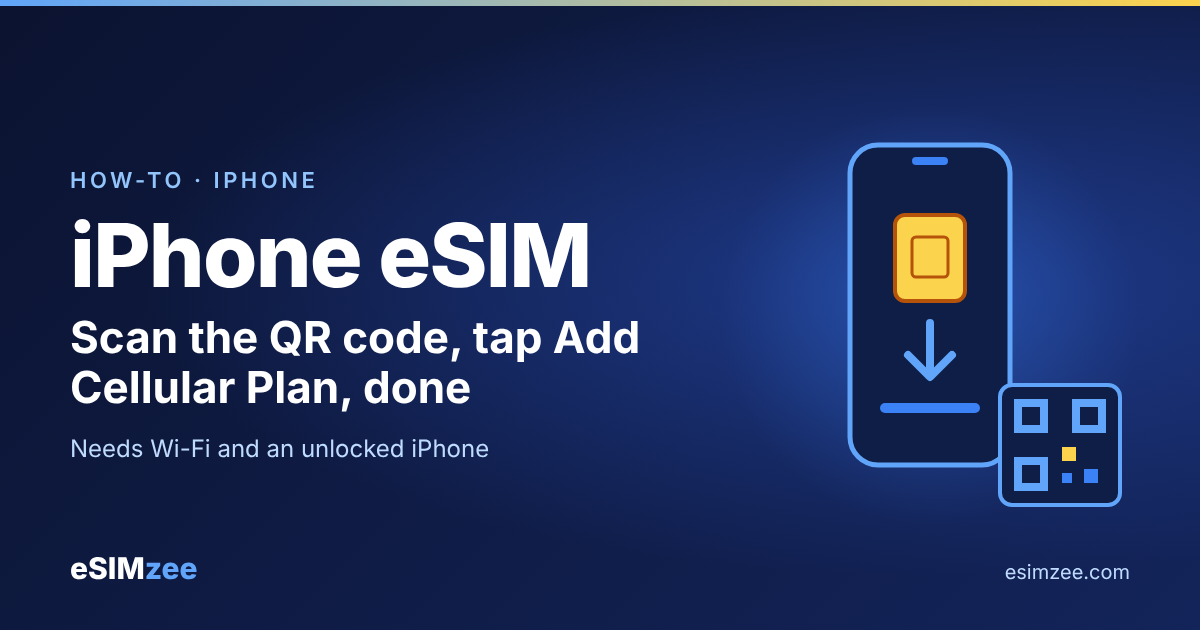
- Open the Camera app and scan the QR code from your provider.
- Tap the Cellular Plan Detected notification.
- Tap Continue, then tap Add Cellular Plan.
- If asked, enter the confirmation code your provider gave you.
On iOS 17.4 or later, you can also touch and hold a QR code that arrives in an email or browser and choose Add eSIM. That helps when you only have one device and cannot scan a code on another screen.
Setting up a new iPhone? On the Set Up Cellular screen, tap Use QR code and follow the prompts.
How do you add an eSIM manually without a QR code?
Use manual entry when the code will not scan or you are reading it on the same phone. Apple lists three taps:
- Open Settings and tap Cellular (or Mobile Data).
- Tap Add Cellular Plan.
- Tap Enter Details Manually at the bottom of the screen.
Then type in the details your provider sent, usually an address and an activation code. Copy them exactly, with no extra spaces.
How do you label your plans and choose the data line?
Label your lines so you never mix them up. Apple's Dual SIM guide says to open Settings, tap Cellular, tap the number, tap Cellular Plan Label and pick a label or type your own, such as "Travel".
Next, choose which line carries mobile data. Apple's travel guide says to open Settings, tap Cellular, tap Cellular Data and select the line. Only one number uses mobile data at a time.
Keeping your home number for calls? Apple states that if you use only the travel eSIM, FaceTime and iMessage keep working on your home line. Remember that you might still pay roaming fees from the home line if you leave it on.
When should you install and when should you turn it on?
Install before you fly, while you have stable Wi-Fi. Apple says you can buy a prepaid plan from a provider's website or app before you travel. On iOS 26 and later, a travel eSIM bought in advance can prompt you to say whether you will use it at home or abroad. On arrival, a Turn On Travel eSIM notification lets you choose Travel eSIM Only or Travel eSIM and Current eSIM.
Your plan's own start rules matter too. Check the validity and activation policy on the plan page of your provider before you install. Browse options on eSIMzee providers or compare plans side by side.
What if it does not work after you install?
- Make sure the new line is on. In Settings, tap Cellular and check that "Turn On this Line" is enabled.
- Confirm the travel eSIM is selected under Cellular Data.
Still stuck? Contact your provider. Apple advises contacting your carrier if a test call fails after install.
Frequently asked questions
Can I install an eSIM without Wi-Fi?
Usually no. Apple says your iPhone needs Wi-Fi or a hotspot, though some eSIM-only models in some countries can activate without it.
Is installing an eSIM the same as activating it?
Not quite. Installing downloads the profile to your phone. Turning the line on lets it connect to a network. Your plan's validity may start at install or at first connection, so read your provider's activation policy.
How do I switch back to my home SIM?
On iOS 26 and later, Apple says your iPhone can turn the travel eSIM off and your home SIM on when you return, depending on your country. If no notice appears, check that your primary line is on and turn off old travel lines.
Can I move my eSIM from Android to iPhone?
Apple says to contact your carrier, which moves the number using carrier activation or a new QR code. Between two iPhones on iOS 18.4 or later, Quick Transfer is available.
How much data will I need?
That depends on your trip. Try the eSIMzee data calculator before you buy.
Sources
- Set up eSIM on iPhone, Apple Support, published September 17, 2026
- Using Dual SIM with an eSIM, Apple Support, published September 17, 2026
- Use eSIM while traveling internationally with your iPhone, Apple Support, published September 17, 2026
- What is the right eSIM activation method for consumer device connectivity?, IDEMIA, September 14, 2021