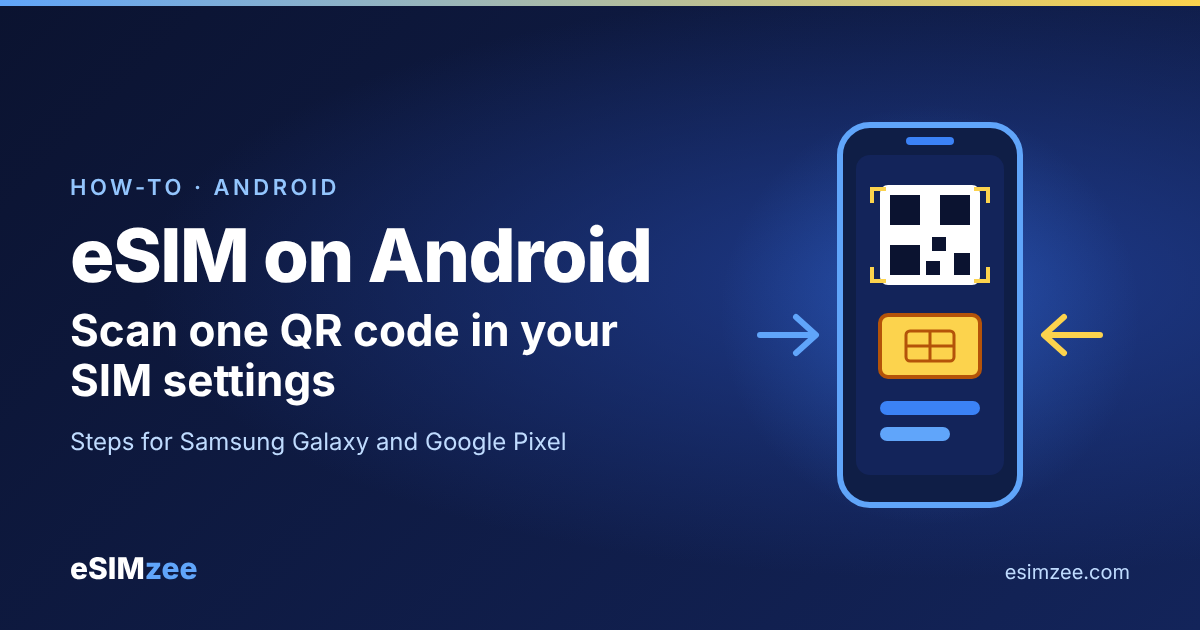
Quick answer: To install an eSIM on Android, open your phone's SIM settings, add an eSIM and scan the QR code from your provider. On a Samsung Galaxy the path is Settings, Connections, SIM manager, Add eSIM. On a Google Pixel it is Settings, Network & internet, SIMs, Add SIM.
What do you need before you install an eSIM on Android?
An eSIM is a digital SIM built into your phone, so there is no card to swap (Apple Support describes it this way for iPhone, and Android works on the same idea). Think of it like an app: your provider gives you a QR code, and the phone uses it to download your plan.
Check these four things first:
- An eSIM-ready phone. Not every Android phone has one. Use the eSIMzee device checker to confirm yours.
- An internet connection. Google says the eSIM setup on Pixel is done online and needs an internet connection.
- The QR code from your provider. Keep it on a second screen or a printout, because you cannot scan the screen of the phone you are installing on.
- An unlocked phone. Samsung notes that if you are changing carriers, your device may need to be SIM unlocked. Ask your original carrier if you are unsure.
Some providers also ask for your phone's IMEI (its device number) and EID (the number that identifies the eSIM chip). Google says you can find the IMEI under Device information in Settings, and the EID under SIM status.
How do you install an eSIM on a Samsung Galaxy?
Samsung lists the carrier QR code as its main way to add an eSIM. Follow these steps:
- Open Settings and tap Connections.
- Tap SIM manager, then tap Add eSIM.
- Tap Scan QR code and point the camera at your provider's QR code.
- Restart the phone to apply the eSIM profile, as Samsung instructs.
Once it is added, go back to SIM manager. Tap the switch beside the physical SIM or the eSIM to turn each one on or off. Tap Primary SIM to choose which line handles calls, texts and data.
Samsung also describes a "Carrier Discovery Server" option, where the phone searches for a plan after you tap Add eSIM. It is offered by some home carriers. A travel eSIM from a comparison site almost always uses the QR code.
How do you install an eSIM on a Google Pixel?
The Pixel steps in Google's own guide look like this:
- Open Settings and tap Network & internet.
- Tap SIMs, then Add SIM.
- On the "Connect to mobile network" screen, tap Set up an eSIM.
- Scan the QR code from your provider when the camera screen opens.
- Go back to SIMs and make sure the toggle beside your new plan is on.
Google says some networks need extra details. In that case, open Access Point Names (APN) in Settings and follow your provider's instructions. Google also says a Pixel 7 or later can hold two eSIMs, and earlier models pair one eSIM with a nano SIM.
Samsung and Pixel menu paths side by side
| Step | Samsung Galaxy | Google Pixel |
|---|---|---|
| Open the SIM menu | Settings, Connections, SIM manager | Settings, Network & internet, SIMs |
| Start adding | Add eSIM | Add SIM, then Set up an eSIM |
| Scan the code | Scan QR code | Scan QR code from carrier |
| Finish | Restart the phone | Check the SIM toggle is on |
Menu names can change with your Android version. If a label differs, look for the same words inside your SIM settings.
What if the eSIM QR code will not scan?
Do not keep trying the same screen. Google says you can upload a picture of the QR code instead of using the camera. You can also tap the troubleshooting link and type in the code your provider gave you.
Make the code large and sharp on a laptop or tablet, and scan from a steady position. If it still fails, ask your provider for a fresh code. Our provider pages link to each brand's support details.
How do you keep your home number while using the eSIM for data?
Use the Primary SIM setting. Samsung lets you pick the default line for calls, texts and data in SIM manager. Google describes the same choice under SIMs in Network & internet.
The simple setup for a trip: keep your home SIM for calls and texts, and point mobile data at the travel eSIM. Check your plan's instructions for any extra switch, such as data roaming, before you land.
Frequently asked questions
Do I need Wi-Fi to install an eSIM on Android?
You need an internet connection, as Google notes for Pixel setup. Stable home or hotel Wi-Fi is the safest place to do it.
Can I use the same QR code on a new phone?
Treat each code as single use. If you change phones, ask your provider for a new code, or on Samsung try the Transfer SIM option, which only works with supported carriers.
How do I transfer an eSIM between two Samsung phones?
On the new phone, go to Settings, Connections, SIM manager, Add eSIM, then Transfer SIM from another phone. Samsung says the new phone shows a code that you enter on the old phone, and the transfer works only with supported carriers.
Why is there no Add eSIM option on my phone?
Your phone may not support eSIM, or your carrier may not support it yet. Samsung warns that some carriers do not support the eSIM features of Galaxy devices. Run the device checker first.
Can I install two eSIMs on a Pixel?
Yes on a Pixel 7 or later, according to Google. Earlier models pair one eSIM with a physical SIM.
Sources
- SIM cards for your Galaxy phone or tablet, Samsung US Support, accessed 2026-10-25
- Setup Your Google Pixel Phone with eSim, Google Store (Australia), accessed 2026-10-25
- Set up eSIM on iPhone, Apple Support, accessed 2026-10-25